How to Tell If Your Solar Panels Are Working
You check your inverter’s status light, you glance at your monitoring app, or you watch your utility meter spin backward during the day. If all three look normal, you’re probably generating power. But here’s the catch: a lot of people think they’d know immediately if something stopped working.
In reality, most solar systems can go partially or fully offline for weeks without the homeowner noticing.
That’s why “how do you know if your solar panels are working” is such an important question. According to research from the National Renewable Energy Laboratory, undetected performance issues are surprisingly common in residential solar installations. A 6 kW system in a decent sun zone should produce roughly 24 to 30 kilowatt-hours on a clear summer day.
If yours is off by even 20 percent, you’re leaving money on the table every single day. Let’s walk through the exact steps to find out if your panels are pulling their weight.
Quick Answer
Look at your inverter’s green light. If it’s solid, your system is running. Open your monitoring app and check today’s production.
Watch your utility meter during peak sun, it should spin backward or show a negative reading. If any of those fail, your panels likely have an issue. Start with the simplest fix: restart the inverter.
The Real Problem: Your Solar System Might Be Offline and You Don’t Know It
Most solar owners assume a panel failure would be obvious. The system is big, it’s on the roof, and the inverter makes noise, right? Not so much.
Inverter failures, tripped breakers, and microinverter faults can all go silent. Even the green light can stay on while actual production drops because of shading, soiling, or partial string failure.
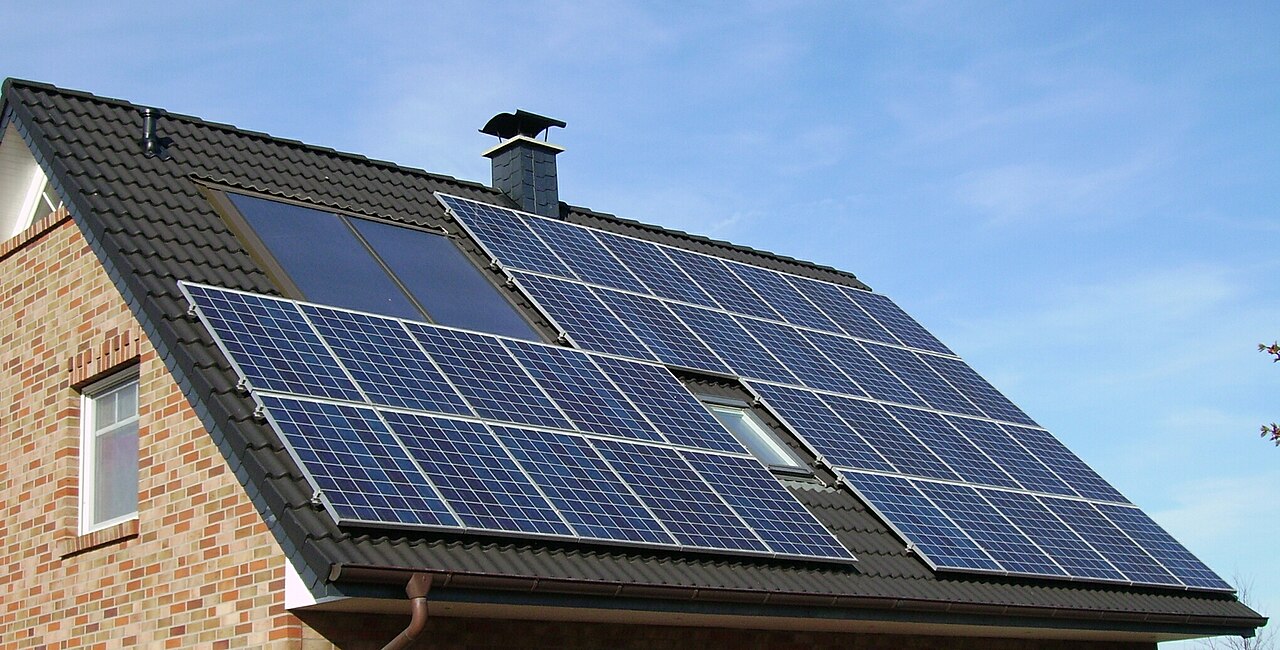
Image source: Wikimedia Commons / Pujanak
Manufacturer specs show that a typical system loses about 0.5 percent efficiency per year from normal degradation, but sudden drops are a red flag. If you rely only on your utility bill, you might not catch a problem for months. That’s lost savings that add up fast.
The decision tree approach we’re about to use will help you catch issues early, even if you’re not the type to check your app daily.
The good news? Most problems are simple to diagnose. You don’t need a multimeter or a ladder.
You need to know which piece of equipment to look at and what it’s telling you. Let’s start with the fastest check you can do right now.
Quick Check: The Three-Thing Dashboard Scan (60 Seconds)
You don’t need to climb onto the roof or open the inverter. In sixty seconds, you can tell if your system is alive or dead. Here’s what to scan:
| What to Check | What It Should Show | Red Flag |
|---|---|---|
| Inverter status light | Solid green (or blue on some models) | Red, flashing, or no light |
| Monitoring app (if you have one) | Current production in watts, ideally above zero during daylight | Shows zero, “offline”, or “no data” |
| Utility meter (during sun hours) | Spinning backward, or a negative “export” reading | Stationary or positive “import” reading |
If all three look healthy, your panels are working. If one is off, don’t panic yet. A flashing light could mean a temporary grid issue, and a zero app reading could be a Wi‑Fi glitch.
The branches below will help you narrow it down.
Decision Branch 1 – You Have a Monitoring App
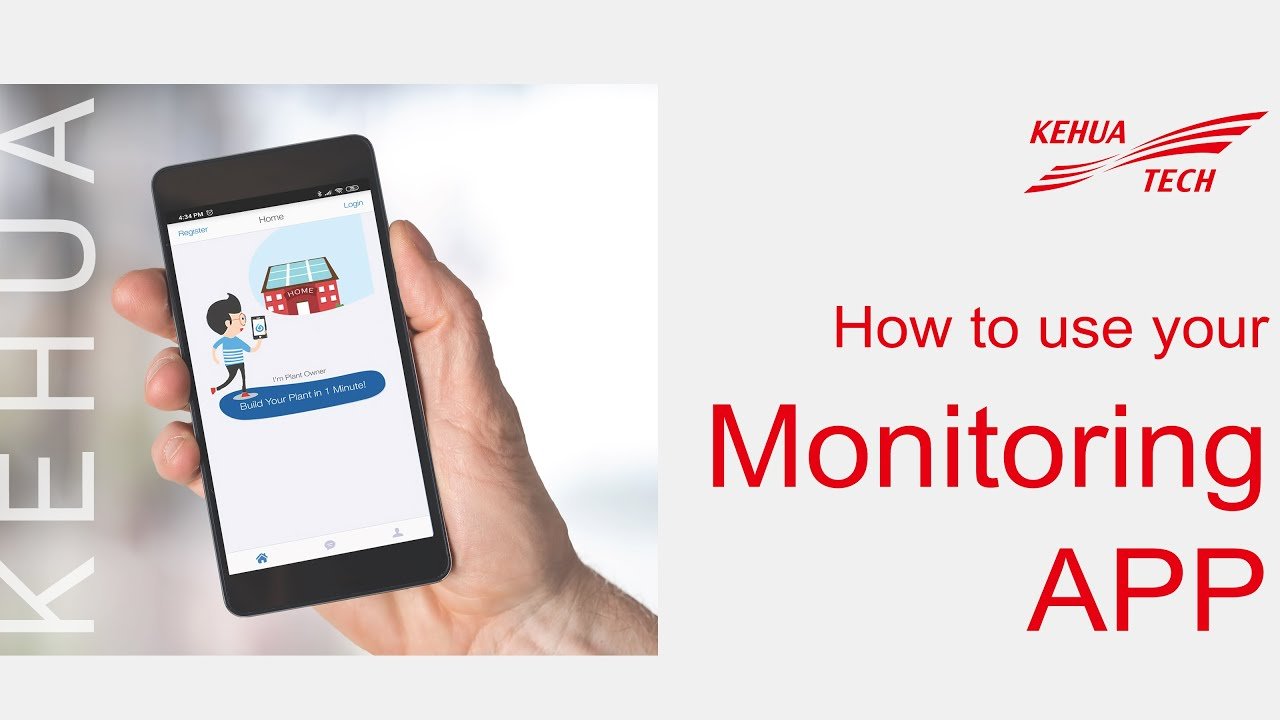
A monitoring app gives you a window into your system’s soul. It shows real-time output, daily production, and often a graph of performance over time. Most modern inverters and microinverter systems come with one from the manufacturer.
Image source: YouTube / Kehua Tech (YouTube thumbnail (fair-use with source credit))
What a Healthy App Looks Like
On a clear day, your production curve should look like a smooth bell. It rises after sunrise, peaks around solar noon, and tapers off toward sunset. The peak number should roughly match your system’s rated capacity minus inverter losses.
For example, a 5 kW system might show around 4.6 to 4.8 kW at its high point.
The app should also show a “daily energy” number in kWh. If your system is new and sized right, that daily total should align with what your installer promised. Most apps let you compare today to yesterday or to the same day last year.
That’s your best ongoing check.
Red Flags in Your App Data
- Zero production, If the app shows a flat line at zero during daylight, something is off. Try refreshing the app or checking data transmission.
- A flat top on the curve, That means the inverter is clipping. On very sunny days, a mild clip is normal, but constant clipping suggests the system is oversized for the inverter.
- Sudden drop in middle of day, Could be a microinverter failure or a string inverter issue. Microinverter systems will show one panel underperforming; string inverters will show the whole array dropping.
- No recent data, The app might say “offline”. This usually means the Wi‑Fi or cellular connection is down, not the solar panels themselves.
What to Do When the App Shows Zero
If the app says zero but your inverter light is green, it’s likely a communication problem. Restart your router, then power cycle the inverter (switch it off, wait five minutes, switch it back on). If the green light goes out after the restart, you’ve got an actual fault.
If the app shows zero and the inverter shows red, skip straight to the inverter section below. That’s a priority.
Decision Branch 2 – You Only Have an Inverter Screen
Not everyone has a smartphone app. Older systems rely on the inverter’s own display. That’s fine, the inverter tells you everything you need to know, once you learn its language.

Image source: Wikimedia Commons / NASA/JPL-Caltech/L. Rebull (SSC/Caltech)
Reading Inverter Status Lights
Most string inverters use a three‑color system: green, amber (orange), and red. Here’s what they mean:
- Solid green, Normal operation. The system is converting DC to AC and sending it to your home or the grid.
- Flashing green, The inverter is waiting. This usually happens during startup after sunrise. If it persists past 10 AM, there could be low irradiance or a grid issue.
- Solid amber, A warning. The inverter is still running but at reduced output. It could be overheating, low voltage from the panels, or a minor internal fault.
- Flashing amber, The inverter is trying to connect to the grid. If it flashes for more than five minutes, the grid may be unstable or your inverter may have a grounding problem.
- Solid or flashing red, Fault. The inverter has stopped. Refer to the error code on the LCD screen. Common codes: “No AC” (tripped breaker or grid outage), “Ground Fault” (leakage current), “DC Bus Low” (panels not producing enough voltage).
Decoding Error Codes Without Panicking
If your inverter shows an error code, write it down. Then look it up in your inverter’s manual. The manual is usually available online from the manufacturer’s support site.
Don’t rely on random forums, specs and codes vary between brands.
The most common fix is a power cycle. Turn off the AC disconnect, then turn off the DC disconnect (or the breaker for the panels). Wait five minutes.
Turn DC back on, then AC. The inverter should restart and run its self‑test. If the error returns, it’s time to call the installer.
The Manual Power‑Cycle Reset
This step works for most temporary glitches. Locate your inverter’s shutoff switch or breaker. It’s usually mounted next to the inverter.
Turn it off. Wait five minutes. Turn it back on.
You should hear the inverter hum to life and see the light cycle from amber to green. If it goes straight to red, the fault is persistent.
Decision Branch 3 – You’re Relying on Your Utility Meter
Some homes don’t have a monitoring app or a display. The only way to see generation is through the utility meter. This is common with older net metering setups or systems that were installed before “smart” inverters became standard.
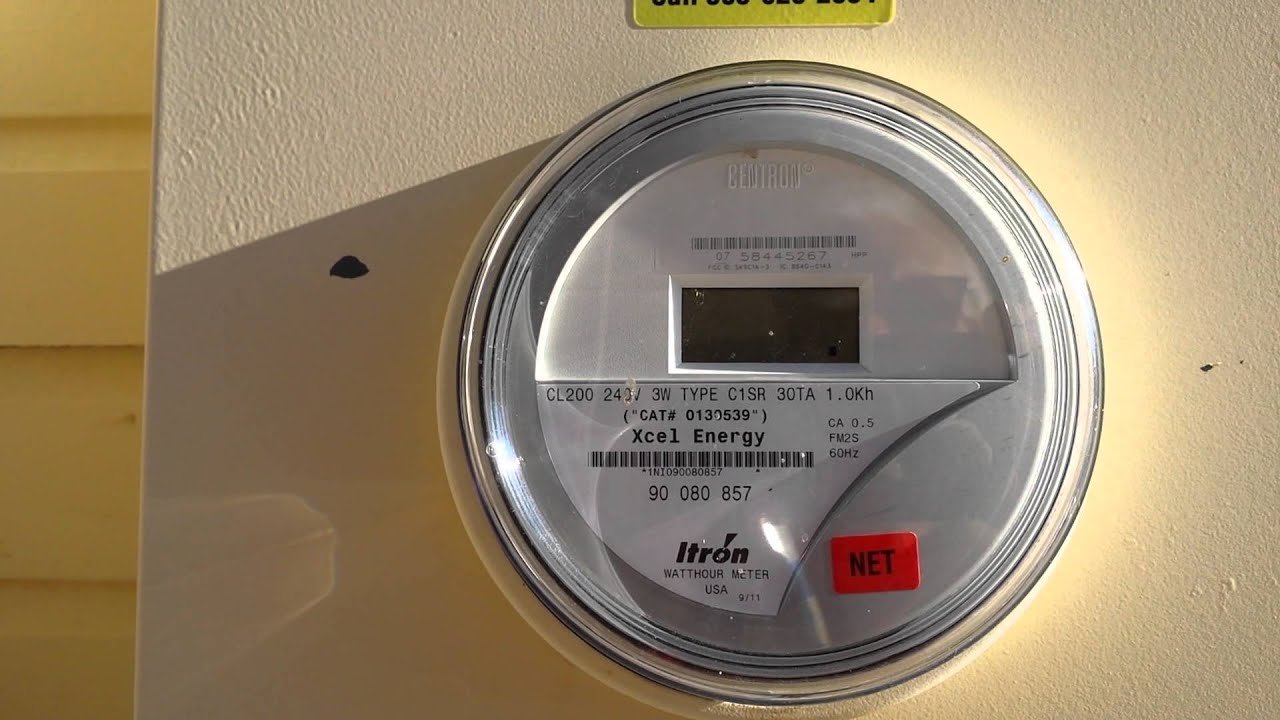
Image source: YouTube / Doug Briggs (YouTube thumbnail (fair-use with source credit))
Net Meter 101: Forward vs. Reverse vs. Stationary
A net meter measures both the electricity you import from the grid and the electricity you export to it. During the day, when your panels produce more than your home uses, the meter should spin backward (older analog models) or show a negative number (digital meters). At night, when you’re pulling from the grid, it spins forward.
- Spinning backward / negative reading, Your panels are generating more than you’re consuming. This is normal during peak sun hours.
- Stationary during the day, Your system is either not generating at all, or you’re using exactly what you produce (rare). If the meter never moves when the sun is out, your panels are likely offline.
- Spinning forward during the day, You’re importing power from the grid. This means your solar production is less than your home’s consumption. Could be normal if you have a large AC unit running, but if it’s spinning forward at full speed on a sunny day, your system may be down.
How to Check During Peak Sun vs. At Night
Do this: on a sunny day around noon, go to your meter. Note the reading (write it down). Then go inside and turn off your main breaker for 30 seconds.
That kills all household load. Go back outside. If the meter is now stationary or moving backward, your panels are working.
If it’s still stationary, they’re not generating.
At night, the meter should always spin forward. If it spins backward at night, you have a wiring issue, call an electrician immediately.
When Your Meter Shows Import but You Think You’re Generating
If your meter shows you’re pulling power from the grid during the day but you believe your panels are working, check for a tripped solar breaker. Locate your main electrical panel and look for a breaker labeled “Solar” or “PV”. If it’s tripped, push it firmly to the “on” position.
If it trips again immediately, call a pro. There may be a serious electrical fault.
Sometimes the meter itself is faulty. If you’ve confirmed the inverter is green and the solar breaker is on, but the meter still shows import, contact your utility company. They can run a diagnostic on the meter remotely or send a technician.
Image source: YouTube / SanTan Solar (YouTube thumbnail (fair-use with source credit))

Similar Posts