How Much Electricity Do My Solar Panels Generate?
Renewable Energy Systems Specialist & Lead Solar Hardware Tester
So you just got solar panels installed, and you're staring at the inverter, the utility meter, and maybe a phone app, wondering if any of them is actually telling you the truth. How Do I Know How Much Electricity My Solar Panels Are Generating? It's the most common question after installation, and honestly, the answer depends on what equipment you have on your wall.
According to NREL's PVWatts data, a typical 6 kW DC system in the US generates between 7,000 and 10,000 kWh annually depending on location and tilt. But those are estimates. Your actual numbers depend on weather, shading, inverter efficiency, and whether your monitoring setup is working correctly.
Let's walk through exactly how to check, starting with the hardware you already own.
Quick Answer
Check your inverter's display panel or mobile app. The screen shows current power in kilowatts (kW) and total energy in kilowatt-hours (kWh). Press the button to cycle through screens.
If no app exists, read your utility meter's export reading. Match it against the app. A discrepancy means something is wrong.
First Off, Why Does This Even Matter?
Solar panels are a major investment. You want to know your system is actually producing what it should. Without checking, you could lose money for months before realizing a panel failed or the inverter malfunctioned.
Warranty claims also require documented proof of underperformance. If you can't show historical data, manufacturers may deny your claim. That's a hard lesson to learn after year three.
Beyond the financial side, tracking generation helps you shift energy usage to peak sun hours. Run the dishwasher at noon instead of 8 PM. Charge your EV when the sun is highest.
You can't optimize what you don't measure.
The different panel technologies available also affect how you monitor. Polycrystalline and monocrystalline panels behave differently under partial shade. A thin-film array has different voltage characteristics.
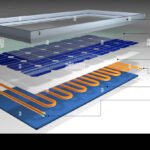
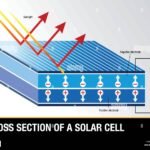
Understanding your system starts with knowing what's on your roof and how the basic science of photovoltaic generation works in your specific setup.
The "What Do You Have?" Decision Tree
The best way to check your generation depends entirely on your equipment. There's no single method that works for everyone. Use this decision tree to find your path.
Branch A: You have a modern inverter with an app or display
This is the easiest scenario. Most inverters from the last five years come with built-in monitoring. Brands like Enphase, SolarEdge, SMA, and Fronius offer free mobile apps.
Open the app, register with the serial number on the inverter, and you'll see real-time data.
If you prefer the physical display, the inverter's LCD screen cycles through current power, daily energy, lifetime total, and sometimes grid voltage. Press the button beneath the screen to scroll. The sun icon means it's generating.
A flashing error light means it's not.
Branch B: You have an older inverter with no app
No app doesn't mean no data. The display still works. You just need to stand in front of it and read the numbers manually.
Write down the daily kWh reading at the same time each day. Subtract yesterday's number from today's. That's your daily generation.
If the display is dead or blank, check the AC disconnect switch. It might be off. Also check the main breaker panel to ensure the solar breaker is on.
A surprisingly common issue is a tripped breaker that kills the inverter entirely.
Branch C: You only see the utility meter
This happens when your inverter has no display and the installer didn't set up a separate production meter. Your utility's net meter can still help, but it's less direct.
The net meter shows export (energy sent to the grid) and import (energy pulled from the grid). To find your total generation, you need to add your home consumption to the export reading. That requires a separate consumption monitor or a smart meter.
Many utilities now offer online portals where you can see hourly import and export data. The numbers won't be perfect, but they'll give you a ballpark.
Branch D: You want per-panel data (microinverters or optimizers)
If you have microinverters (Enphase) or power optimizers (SolarEdge), your monitoring app shows individual panel performance. This is the gold standard for troubleshooting. A single underperforming panel shows up as a red dot on the map view.
Check the app for a "module-level" or "panel view" option. Compare panels on the same roof face. If one is 30% lower than its neighbors, you likely have shading, soiling, or a hardware fault.
Aggregate reviews of these monitoring platforms report that the per-panel view catches failures weeks earlier than whole-system data alone.
Step-by-Step: How to Read an Inverter Display in 30 Seconds
Not all inverter displays are the same, but the core workflow is nearly identical. Here's how to get the numbers you need.
Find the inverter. It's usually mounted on an exterior wall near the main breaker panel, in the garage, or in the basement. Look for a box roughly the size of a briefcase with a small LCD or LED screen.
Press the button. Most inverters have a single button beneath the screen. Press it once to cycle through the display modes.
The sequence typically goes: current power (kW) → daily energy (kWh) → total energy (kWh) → grid voltage (V) → error codes (if any).
Read the number. Current power tells you what the system is producing right now. On a sunny day at noon, a 6 kW system should show 4.5 to 5.5 kW.
Daily energy shows the total kWh generated since midnight. The total energy reading is cumulative over the system's lifetime.
Check for error codes. If the display shows a flashing "E" or "F" followed by a number, your inverter has a fault. Look up that code in the user manual.
Common codes indicate grid voltage issues, communication failures, or internal temperature problems.
If the screen is blank, check the AC disconnect switch. It's a gray box near the inverter with a handle. Flip it to the "ON" position.
If the screen stays blank, the inverter may be in standby mode (waiting for sufficient sunlight) or completely dead. Wait until full sun and try again.
How to Use Your Net Meter to Back-Check Your App
Your monitoring app is only as accurate as its sensors. CT clamps can slip. Wi-Fi can disconnect.
The utility meter is the final authority. Here's how to verify your app's numbers against the meter.
Locate your net meter. It's usually on the exterior wall near the main breaker panel. It has a digital display that cycles through import (kWh received), export (kWh sent), and sometimes net (difference).
Each screen is labeled.
Read the export reading. This is the number that matters for solar verification. The export reading shows total kWh sent to the grid since the meter was installed.
Write it down.
Read the app's export total. Most solar monitoring apps show a "exported to grid" or "sent to utility" number. Compare it to the meter's export reading.
They should match within 1-2% after accounting for line losses and inverter efficiency.
If they don't match, check the date. The app might be showing data from yesterday due to a sync delay. Wait 24 hours and compare again.
If the discrepancy persists, your CT clamp may be installed backward or the app's configuration is wrong. Contact your installer.
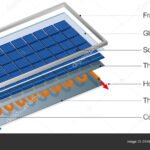
The internal structure of a solar panel includes the CT clamp location in the junction box. If the clamp is on the wrong wire, your generation reading will be zero or negative. A full system shopping checklist should include verifying CT clamp placement during installation.
Common Mistakes That Make Your Readings Wrong
Even with the right equipment, you can get misleading numbers. Here are the most common errors and how to avoid them.
Confusing kW and kWh
kW is power at a single moment. kWh is energy over time. Your inverter display shows both. If you see 4.5 kW, that's what it's making right now.
If you see 28 kWh, that's the total so far today. They measure different things. Don't mix them up.
Ignoring inverter clipping
On a perfect sunny day, your inverter may hit its maximum output and stay there for an hour or two. This is called clipping. It's normal and doesn't mean anything is broken.
The inverter is simply capped at its rated capacity. The lost energy is usually less than 2% annually.
Misreading the net meter
Many net meters cycle through four or five screens. The one labeled "REC" is received (import). The one labeled "DEL" is delivered (export).
If you read the wrong screen, you'll think your system is producing twice as much or half as much as it really is.
Forgetting about self-consumption
Your app shows total generation. Your net meter shows export only. The difference is the energy you used in your home.
If you're running the AC at 3 PM, your app might show 5 kW generated, but your net meter shows only 2 kW exported. That doesn't mean your system is broken. It means you're using the power yourself.
Overlooking shading and soiling
A tree branch that grew last summer or a layer of pollen can drop your output by 20% or more. Check your app on a clear day at noon. Compare the number to the same date last year.
If it's significantly lower, inspect your panels for dirt, bird droppings, or new shade.

Similar Posts